Mastering Paper Flower SVG Template №7: A Guide to Flawless Crafting
There is a specific satisfaction in holding a handmade paper flower that looks almost too real to be made from cardstock. Whether you are a seasoned scrapbooker, a small business owner creating wedding decor, or a hobbyist looking for a relaxing weekend project, the right digital template makes all the difference. Paper Flower SVG Template №7 has gained attention for being remarkably easy to use and simple to assemble, but like any digital crafting tool, its potential is only realized when you understand how to work with the files correctly. Many crafters rush into cutting and gluing without checking the fine print of their download, leading to frustration with machine settings, missing pieces, or poor material choices. By taking a moment to understand the specifics of this template, you can avoid common pitfalls and ensure your final creation is stunning.
Understanding What You Are Actually Downloading
One of the most frequent misunderstandings occurs immediately after purchase. When you buy a digital design, you aren't getting a physical object; you are acquiring a set of instructions for your cutting machine or printer. With Paper Flower SVG Template №7, you receive a single ZIP file containing a variety of formats: one PDF, one SVG, nine PNGs, one EPS, and one DXF. A common mistake is assuming all these files do the same thing or trying to open the ZIP file directly in your design software without extracting it first. Most programs, including Cricut Design Space and Silhouette Studio, cannot read a compressed folder. You must extract the files to your computer before importing them. Skipping this step often leads users to believe the file is corrupted or empty, causing unnecessary stress before the project even begins.
Furthermore, not every file format is compatible with every machine. If you are using a basic version of Silhouette Studio (the free edition), you cannot open the SVG file. This is a licensing restriction imposed by the software company, not a flaw in the template. In this scenario, you should utilize the included DXF file, which is specifically designed for the Basic Edition. Conversely, if you have the Designer Edition, the SVG is your best bet for clean cut lines. For those using Adobe Illustrator or CorelDraw, the EPS file offers the highest level of editability. Choosing the wrong file type for your specific software setup is a quick way to halt your progress, so always verify your machine's capabilities before you start cutting.
The Critical Detail of Missing Leaves
A specific detail that often catches beginners off guard with Paper Flower SVG Template №7 is the absence of leaf cutting templates in the package. The description clearly states that leaves are not included, yet many users overlook this, expecting a complete botanical suite. When the leaves don't appear in the preview or the cut list, they assume the download is incomplete. This template focuses strictly on the bloom itself. This isn't an oversight; it is a design choice that allows you to customize the greenery to match your specific project needs. Perhaps you want realistic monstera leaves, or maybe you prefer simple fern shapes. By providing just the flower, the designer gives you the freedom to source or draw your own foliage. To avoid disappointment, plan ahead. If you need leaves, search for a complementary leaf template or hand-draw them onto your cardstock before you begin assembling the petals.
Optimizing Your Material and Cutting Settings
The quality of your final flower depends heavily on the materials you choose and how you interpret the outline images. The package includes high-resolution PNGs at 300 DPI with transparent backgrounds, as well as PDF outlines formatted for A4 paper. These outline images are intended to be printed on colored paper, then cut and glued. A common error is printing these outlines on standard printer paper (20 lb bond) and expecting the flower to hold its shape. Paper flowers require structure. You need to use cardstock, typically between 65 lb and 80 lb weight. If you use paper that is too thin, the petals will droop, and the intricate layers will collapse under the weight of the glue. If the paper is too thick, it becomes difficult to curl and shape the petals naturally.
Additionally, pay close attention to the "cut lines." Since these are outline templates, your cutting machine or scissors need to follow the outer edge precisely. If you are using a machine like a Brother Scan and Cut or a Cricut, ensure your blade is sharp. A dull blade can tear the edges of the cardstock, leaving a fuzzy finish that ruins the delicate look of the petal. For those printing the PDF to cut by hand, use a pair of micro-tip scissors. Regular office scissors are often too bulky to navigate the tight curves found in the center of the flower. Taking the time to prep your tools and select the correct paper weight transforms a flat printout into a dimensional piece of art.
Leveraging the Video Tutorial for Success
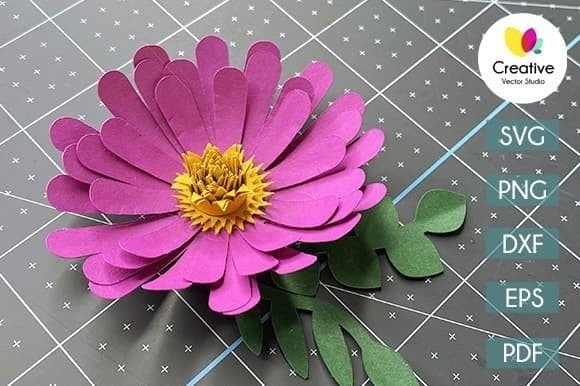
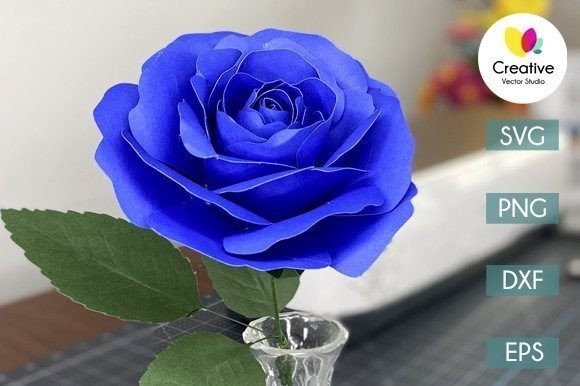
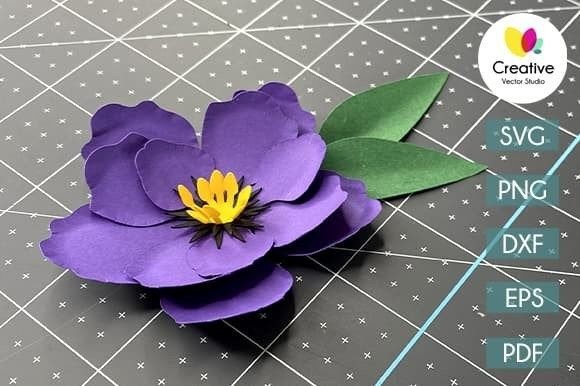
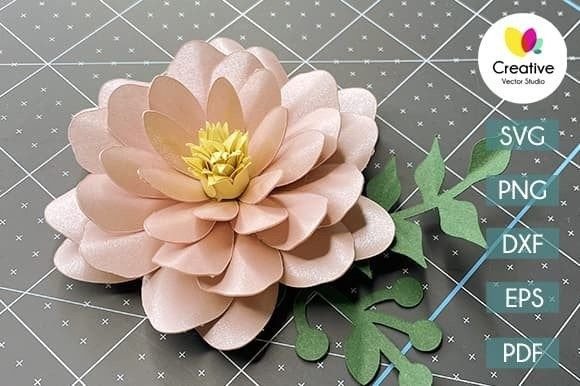
Even with the simplest template, assembly can be confusing if you are visualizing the 3D structure from a 2D image. Paper Flower SVG Template №7 addresses this by including a link to a video tutorial within the ZIP archive, also available on the creator's YouTube channel. A significant number of users skip this resource, preferring to figure it out themselves. While experimentation is part of the fun, ignoring the tutorial can lead to inefficient gluing methods. For instance, applying glue to the entire surface of a petal overlap can cause wrinkling and visible residue. The video likely demonstrates the "tab and fold" method or specific layering sequences that create volume without bulk. Watching the tutorial first saves you time, glue, and paper. It acts as a corrective guide, showing you exactly how to curve the petals and in what order to stack them to achieve the fullness shown in promotional photos.
Making the Right Choice for Your Project
Before you commit to downloading and making this flower, consider your end goal. Are you making a single statement piece for a nursery, or are you producing fifty blooms for a wedding arch? If you are scaling up, the efficiency of the SVG file becomes paramount. Using the vector files allows you to resize the flower without losing quality, something you cannot do with the raster PNGs. However, if you are a beginner without a cutting machine, the PDF option is your most practical route. It is formatted universally for A4 printers, meaning you can start immediately with just a printer and scissors.
It is also worth noting that this is a digital download; no physical item will be shipped to you. This distinction is vital for last-minute gift givers who might expect a tangible product. Once you understand that you are buying the capability to make the flower rather than the flower itself, you can plan your timeline accordingly. Allow time for file extraction, test cuts, and the actual assembly process.
Ultimately, Paper Flower SVG Template №7 is a versatile tool designed to be accessible for everyone from novices to professionals. Its simplicity is its strength, but that simplicity relies on the user paying attention to the details: extracting files correctly, choosing the right format for their machine, selecting appropriate cardstock, and utilizing the provided video guidance. By avoiding the common traps of incompatible files and incorrect materials, you ensure that your crafting experience is smooth and your results are professional. Whether you are decorating a home, creating content for a blog, or selling handmade goods, mastering these digital nuances will elevate your work and save you from unnecessary headaches.